.png?width=45&name=unnamed%20(4).png)

Quick Navigation & Action Guide
- From BI tool dashboard, go to Buyer / Seller pipeline
- Click set thresholds or go to settings at the top to enter the number of days for your thresholds.

- Control the minimum and maximum days a deal can sit before it’s flagged
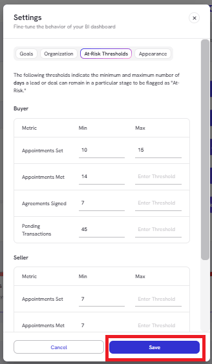
Note: Max threshold is optional
Once the list exceeds the maximum threshold, older deals are automatically removed to maintain a clean interface
- Click on the At-Risk number to view which deals are currently flagged.
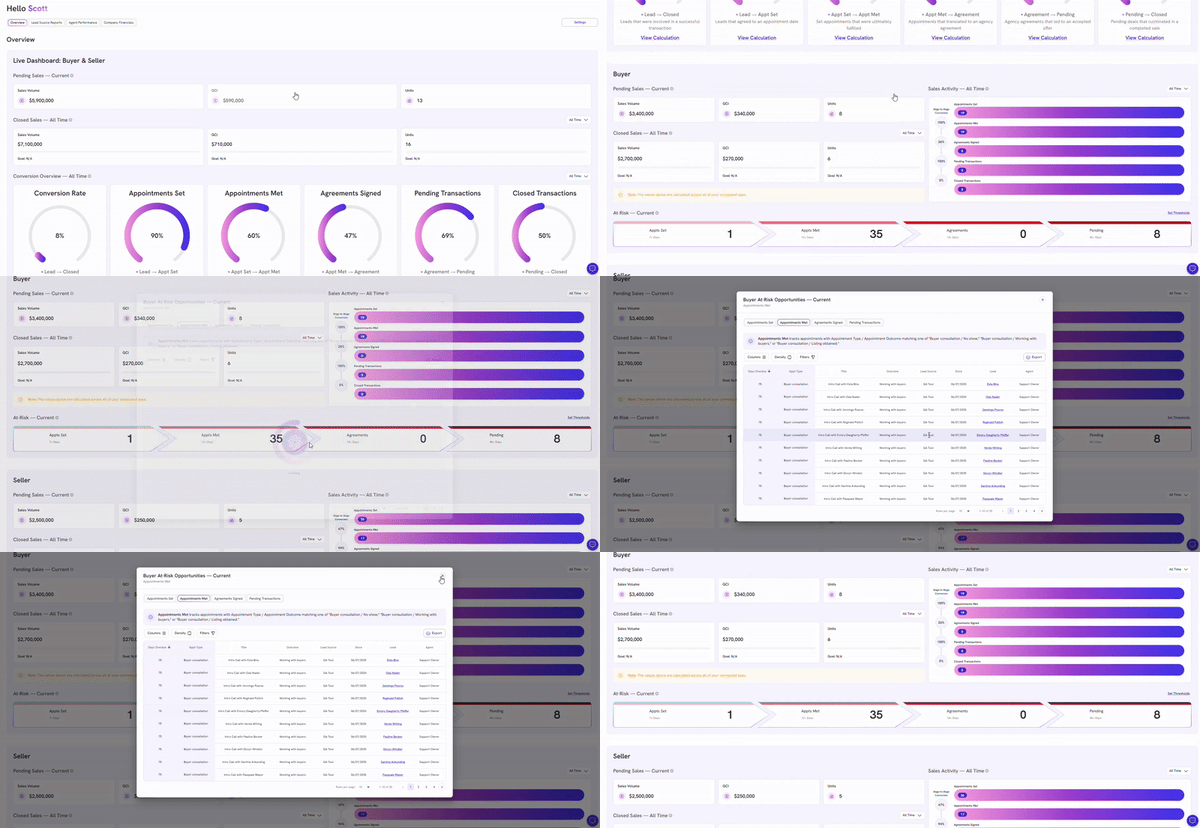
For Appointment Set and Met, you’ll see the following details:
-
- Days Overdue
- Appointment Type
- Deal Name
- Outcome
- Lead Source
- Date the Lead was created
- Lead Name (clickable) opens the deal in FollowUpBoss
- Agent / Owner
For Signed Agreements and Pending (Buyer and Seller side), and Active Listings(Seller side), you’ll see the following details:
-
- Days Overdue
- Pipeline & Stage
- Deal Name
- Sales Price
- GCI
- Date the Lead was created
- Lead Name (clickable) opens the deal in FollowUpBoss
- Agent / Owner
Note: Days overdue are calculated as the number of days past the defined threshold (e.g., if the threshold is 14 days, a deal flagged at-risk has been sitting for 14 days plus the additional overdue days).
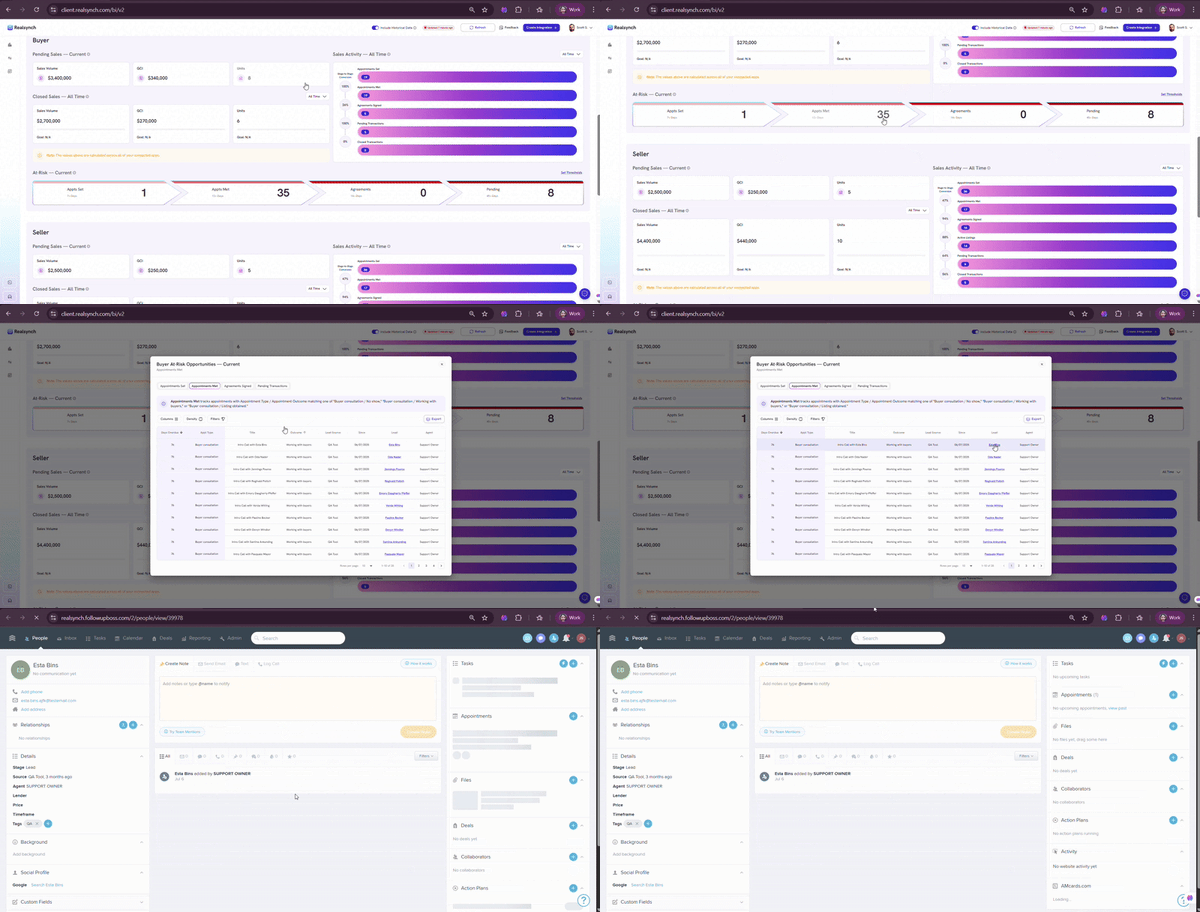
- From there, click on the Lead Name and it will take you to the Lead’s profile on your Follow Up Boss for more details
- Click Filter to check Unknown Lead or Unknown Team Member from deals
.gif?width=600&height=275&name=ezgif.com-animated-gif-maker%20(2).gif)
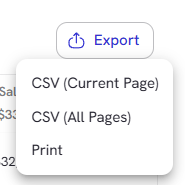
- Click export button to download current page or all pages of your report in CSV format