

Integration Requirements:
- The Follow Up Boss Owner must provide a relevant API Key to connect Follow Up Boss for proper integrating.
Once you have added your Apps to the dashboard, perform the following to connect your Source and Target systems:
- There are two ways to begin creating your integrations:
Select the Integrations option on the Left hand Menu:

Or, the Create Integration button in the upper right:

- Select Source and choose your Source System.

- Click Proceed:

- Next, select your Source triggers (all options are enabled by default) and click Save:

- Once saved, you will move to the Target side of the Integration.

- Select Realsynch BI as your target and click Proceed.

- Next, select the actions you would like performed for each Trigger that was selected on the Source side (all options are enabled by default). Click Save:
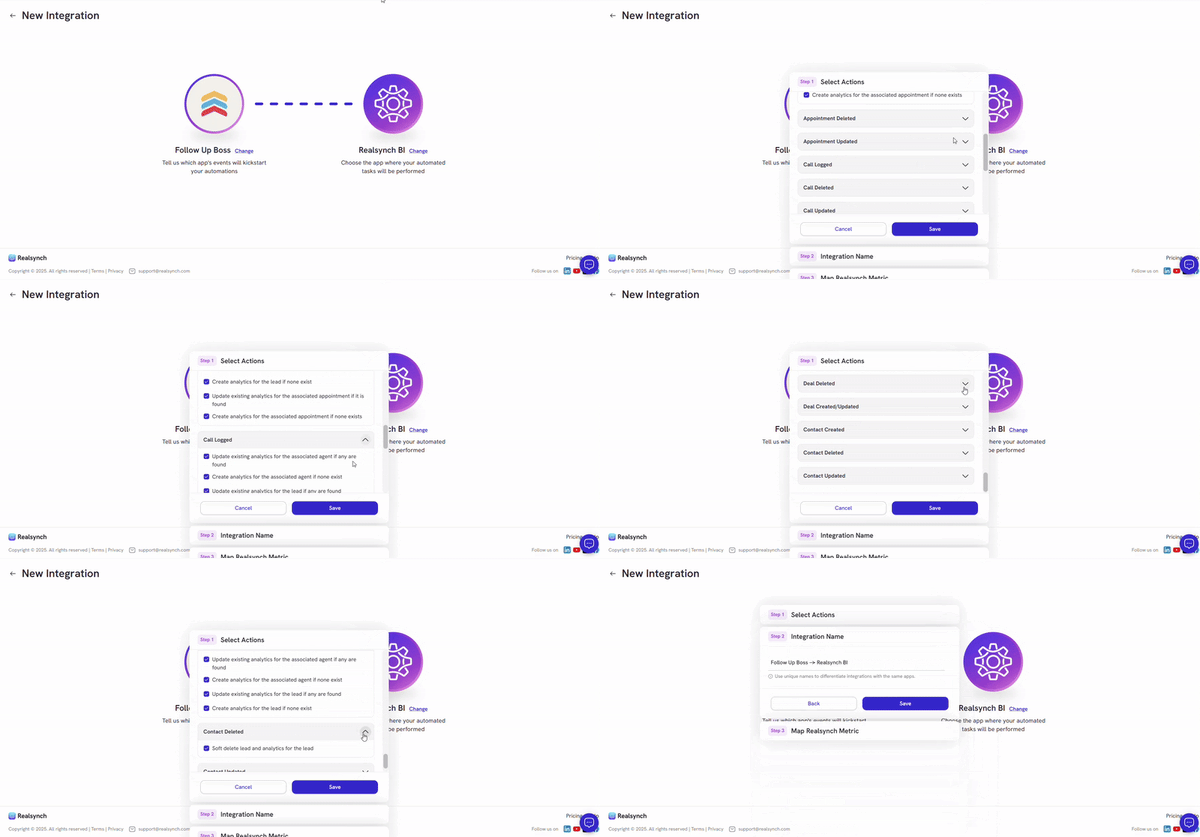
- Name the Integration and click Save:

- Lastly, select your mapping method for each metric:

- Click proceed once you have chosen your selected mapping method:

- Complete the mapping process and click Done:

- Once each metric has been mapped, Click Done to publish your integration:

*Note: all options must be mapped to proceed and publish the integration
Your Integration is now Active and ready to use!
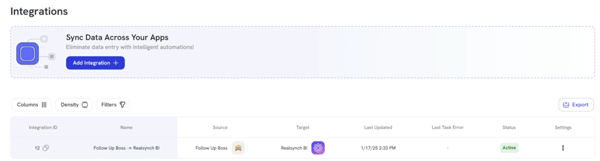
You can find your integration on your dashboard, and the integration can be updated at any time using the Settings Option by clicking the Ellipsis > Edit:


.png?width=45&name=unnamed%20(4).png)