
.png?width=45&name=unnamed%20(4).png)

Get a clear view of how different lead sources are performing across your pipeline
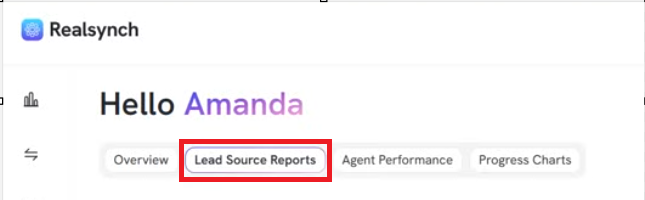
- From BI dashboard, click Lead Source Reports
- The key metrics tracked are as follows:
-
- Lead Source
- New Leads (Total)
- Appointments Set (Total)
- Closed (Total)
- Conversion %
- GCI (Total)
- ROI
- Estimated Spend (Total)
- Avg Close ($)
- Avg Time (Total)
- Edit Spend
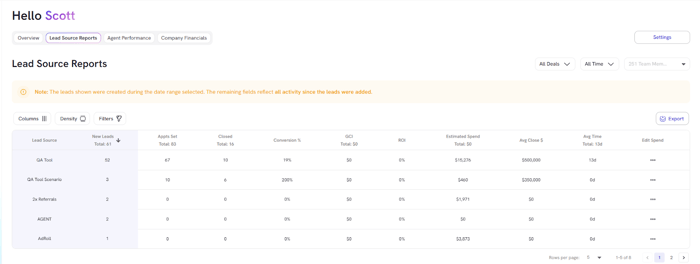
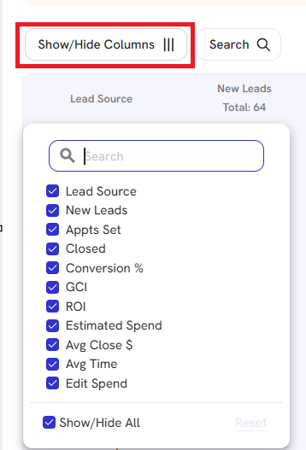
- Click on Columns to filter which columns you want to hide or show on Lead Source Reports
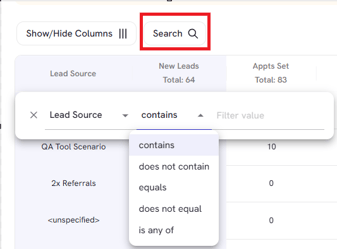
- Use Search filter to narrow down data with chosen condition/value
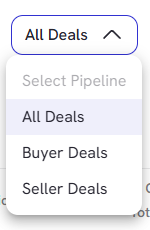
- Check on Deals to filter All, Buyer or Seller Deals
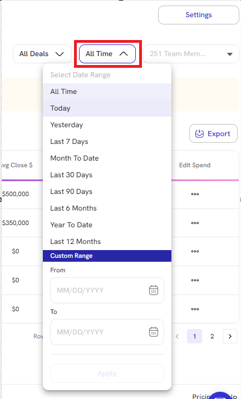
- Filter timeframe dropdown based and select any custom date range
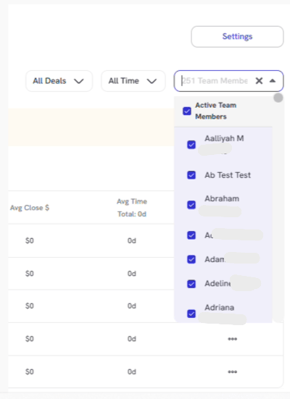
- Use Team Member dropdown to filter down agents data you want to look at under Lead Source Reports
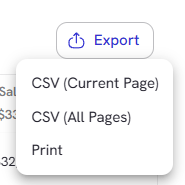
- Click export button to download current page or all pages of your report in CSV format
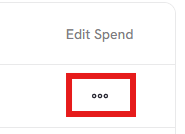
- Click the Ellipsis on the right to access the Edit Spend option
*Please see Realsynch Business Intelligence Lead Source Reports: Edit Spend article for more details.