.png?width=45&name=unnamed%20(4).png)

This guide explains how to record, save, and upload appointments in the RealSynch app, including configuring permissions, managing recordings, and entering lead details.
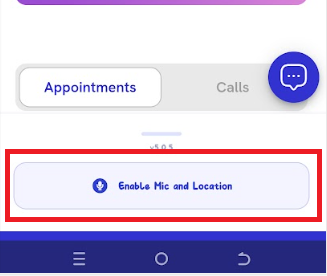
- Enable Mic & Location
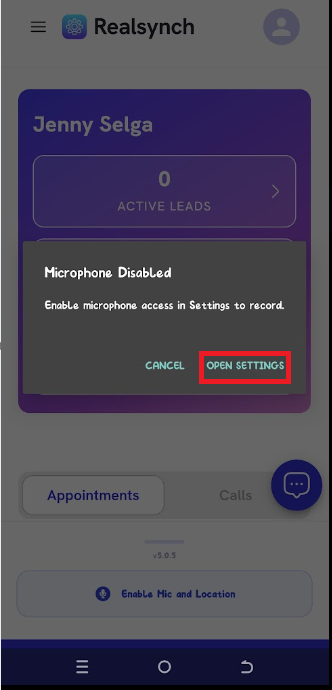
- Click Open Settings
- Go to App Settings > Permissions
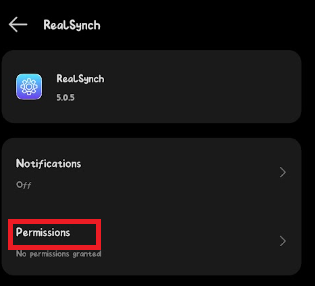
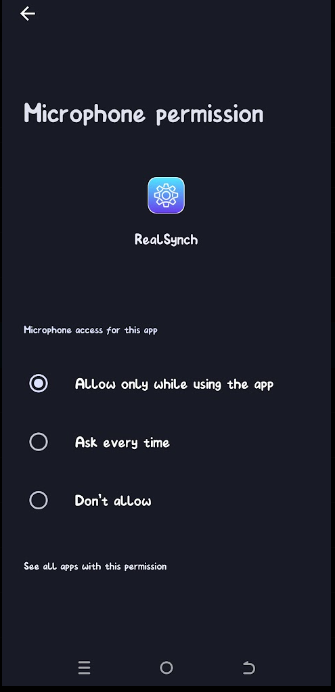
- Click Location and Microphone
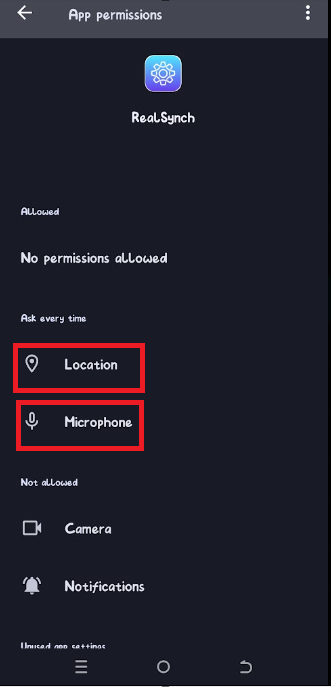
- Allow Location and Microphone access.
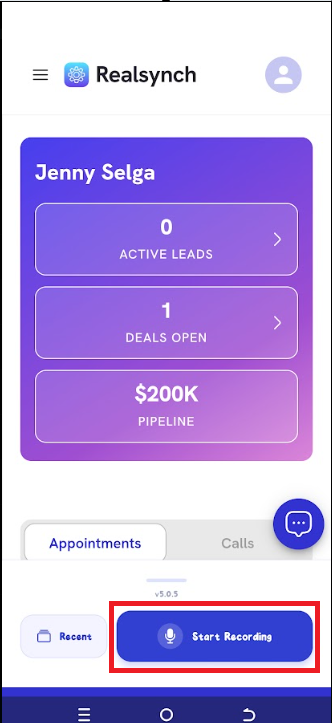
- Return to the app and tap 'Start Recording'.
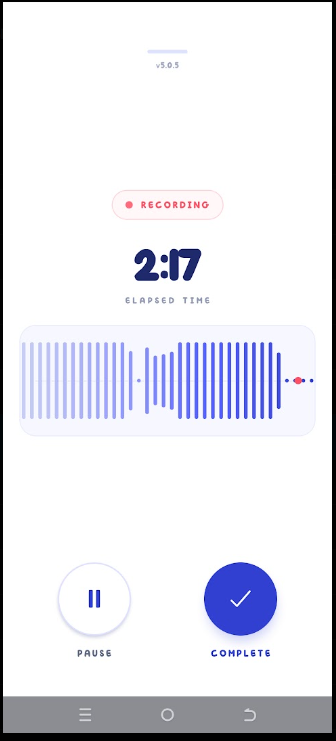
- Pause as needed; tap 'Complete' to finish.
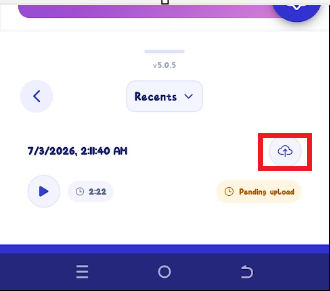
- Tap the cloud icon to upload.
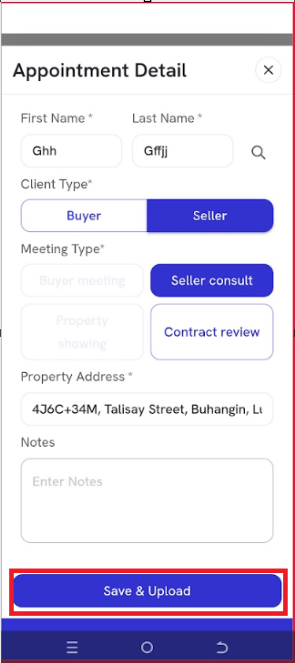
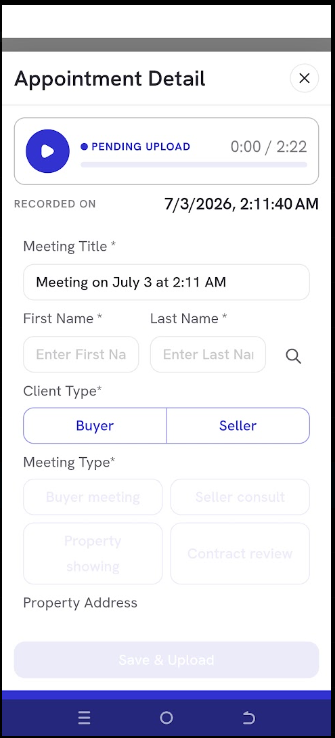
- Edit the meeting title and enter the lead's first and last name.
-
Select Buyer or Seller; the property address auto-fills from your location. Click Save and Upload.