.png?width=45&name=unnamed%20(4).png)

This guide outlines how to navigate the RealSynch Conversation Intelligence Calls dashboard, enabling you to apply specific filters to analyze agent call metrics, performance trends, and AI-generated insights
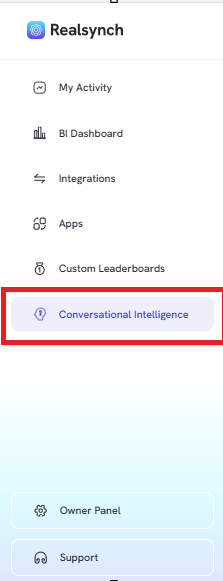
- From the RealSynch menu, click the “Conversation Intelligence” tab
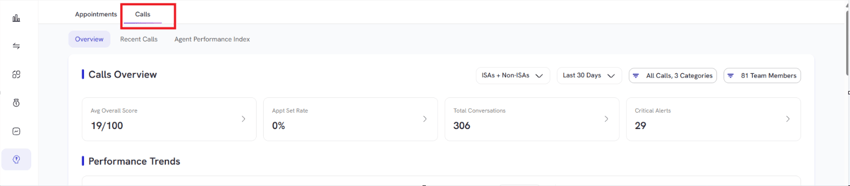
- Go to Calls tab:
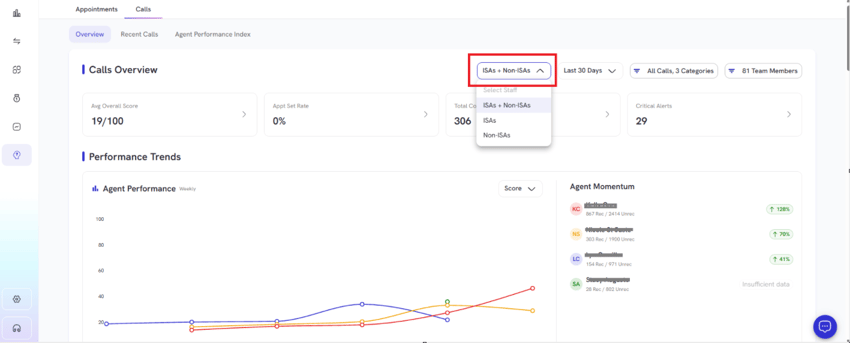
- Customize your view for ISAs and Non-ISAs dropdown

- Customize your view for Inbound, Outbound or All Calls dropdown:
- Click the call filter for the slide out panel on the right to refine dashboard data
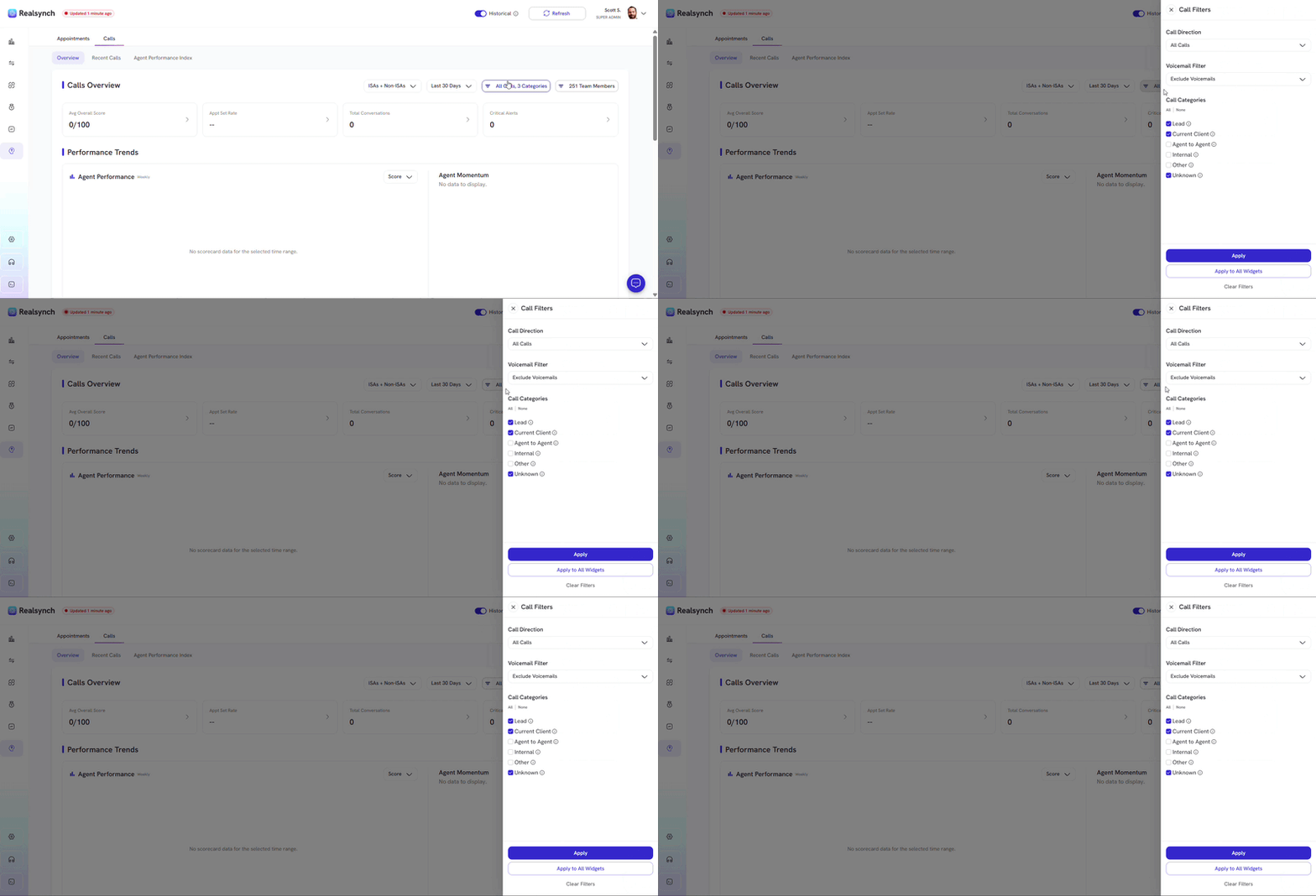
- Choose between all calls, outbound or inbound only then apply to this widget or for all widgets.
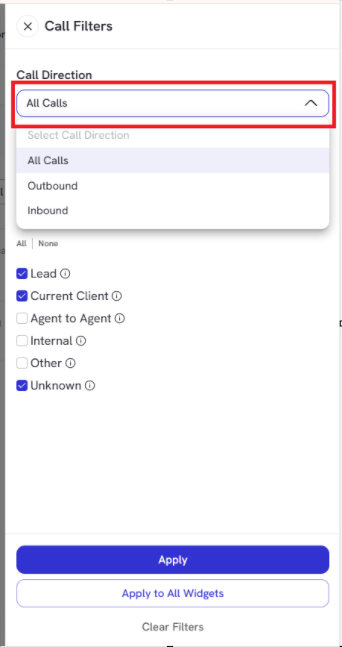
- Exclude, include voicemails or voicemails only
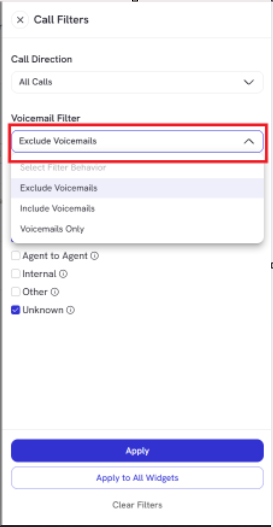
- Check the call categories checkbox based on the recipient type
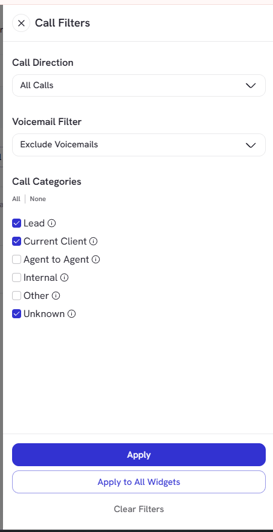
- Lead if the call is for a prospective client
- Current Client if the call is already a customer
- Agent to agent if the call is between agents who work at a different organization
- Internal if the call is between people who belong to the same organization
- Other if the call doesn’t fit to any of these categories
- Unknown if the call category cannot be determine
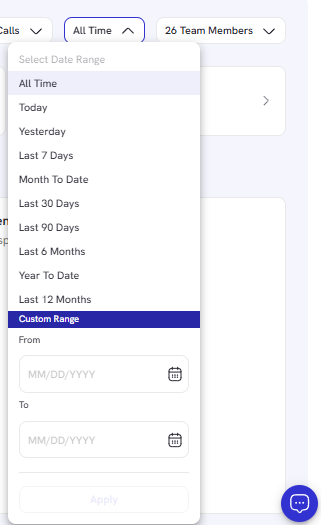
- Customize your view depending on your selected date range:
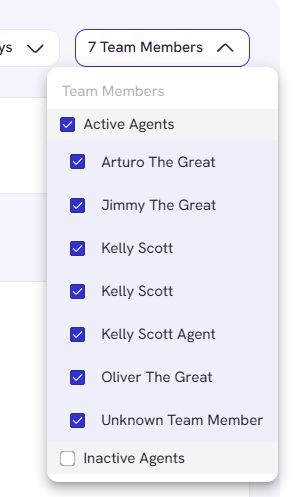
- Exclude or choose a specific agent report by using the Team Member dropdown:
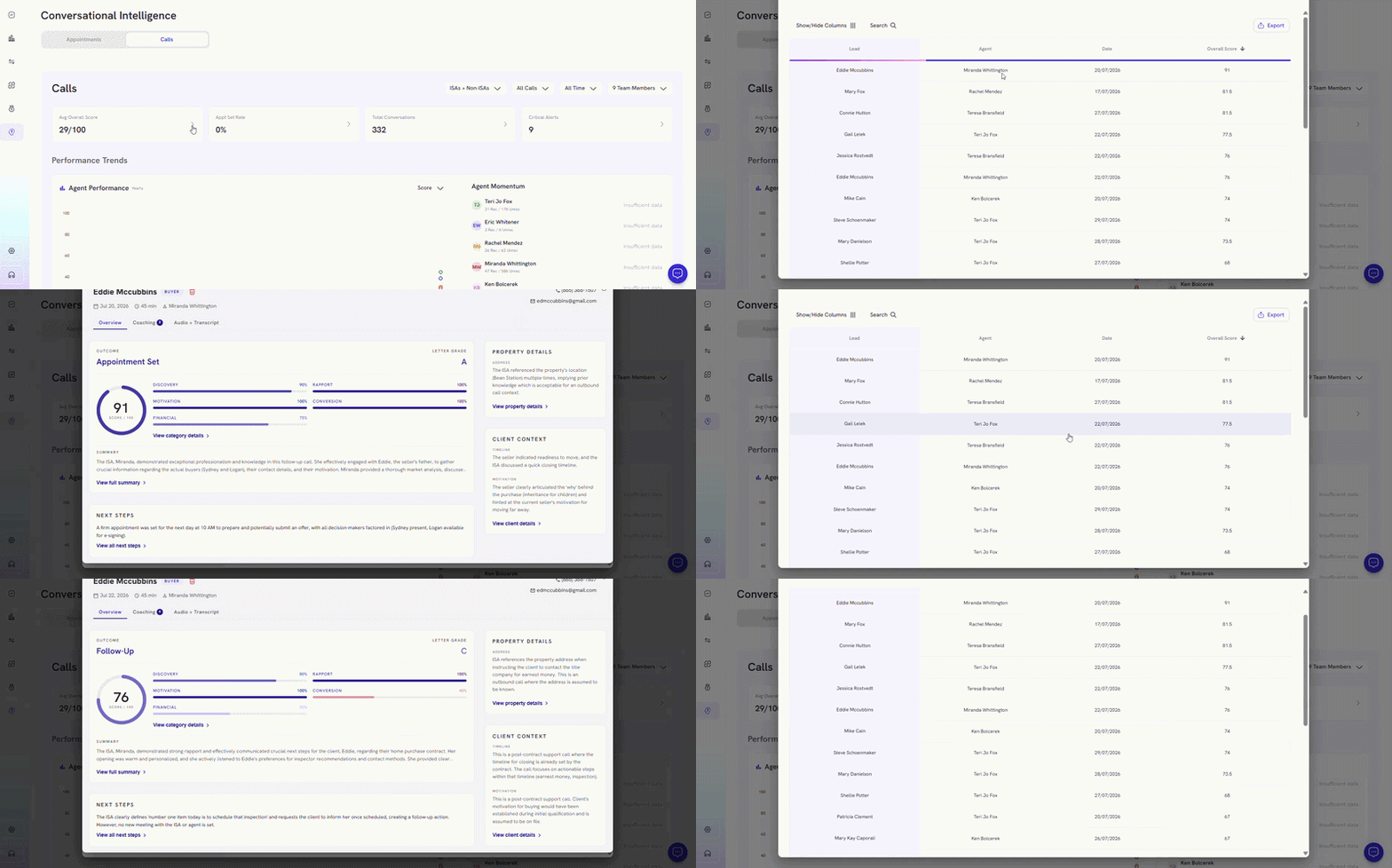
- Click each metrics to view agent’s data AI Insights:
- View Performance trend update based on the specific timerange:
-1.gif?width=800&height=321&name=ezgif.com-gif-maker%20(1)-1.gif)
- Click any recent calls to view AI Insights:
-1.gif?width=800&height=343&name=ezgif.com-gif-maker%20(2)-1.gif)
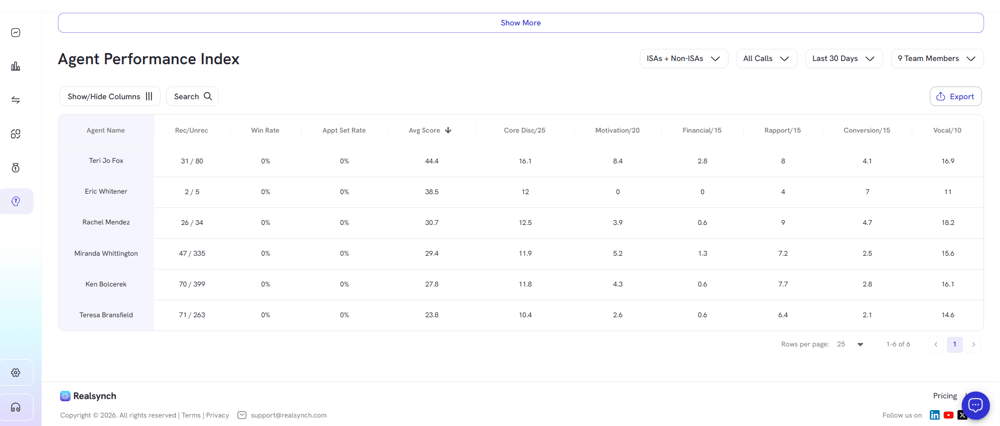
- View Agent Performance Index to see top agents based on AI Insights Avg Score