

Learn how to access and navigate the Conversation Intelligence feature in RealSynch to view AI-driven insights, performance trends, and manage call recordings.
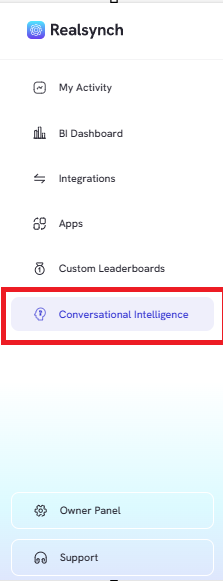
- From the RealSynch menu, click the “Conversation Intelligence” tab
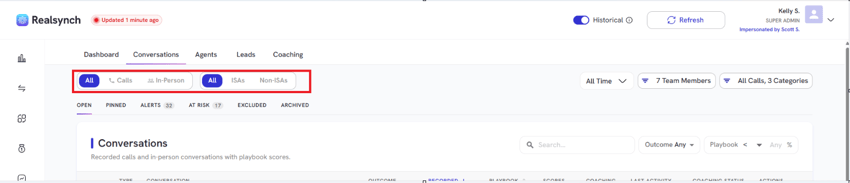
- Filter insights by communication type (All, Calls, or In-Person) and user role (All, ISAs, or Non-ISAs).
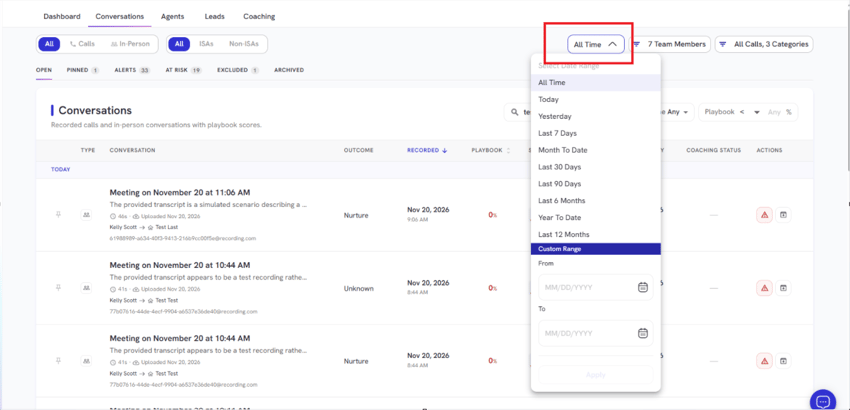
- Select preset ranges or define a Custom Time Range
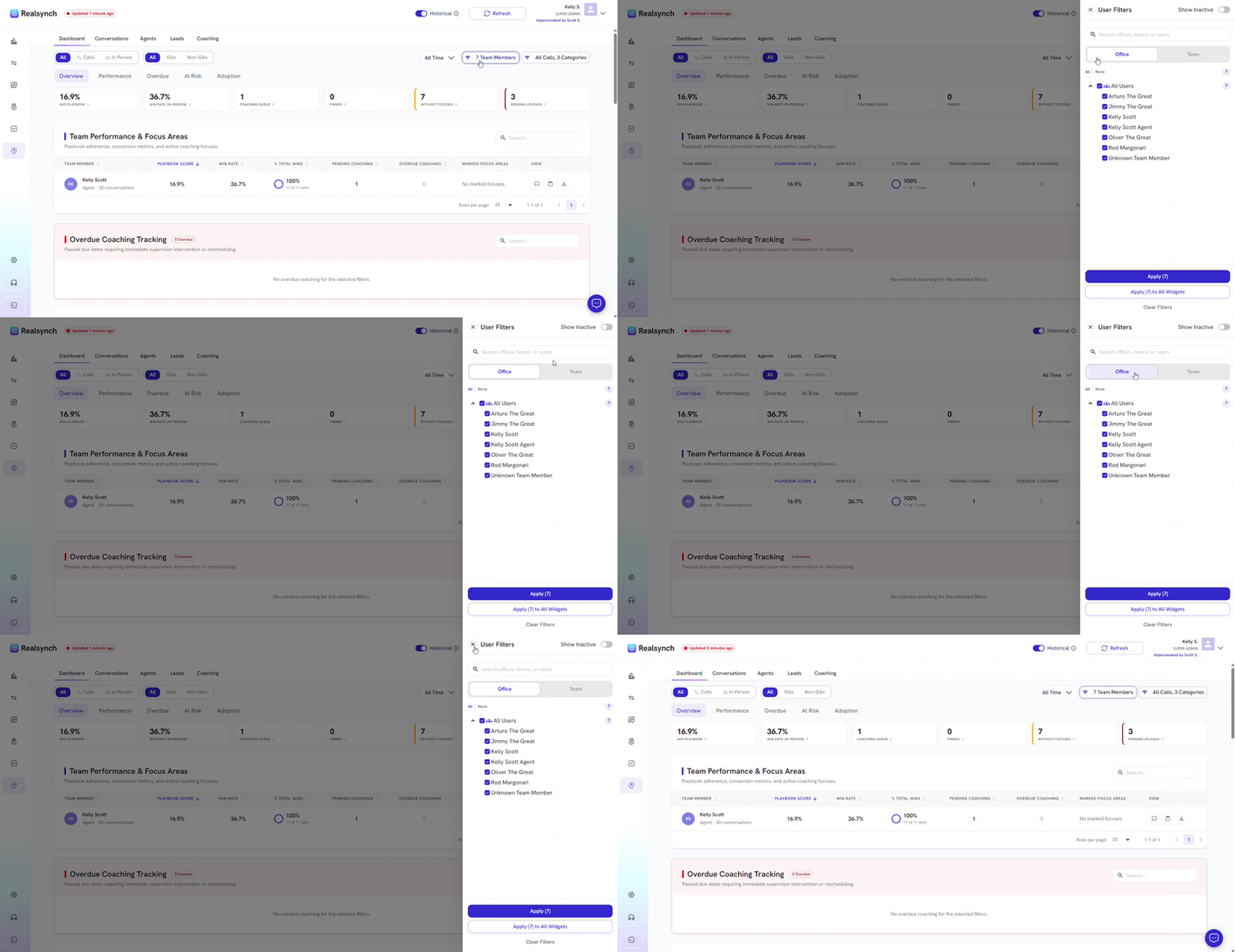
- Filter by team members, offices or teams
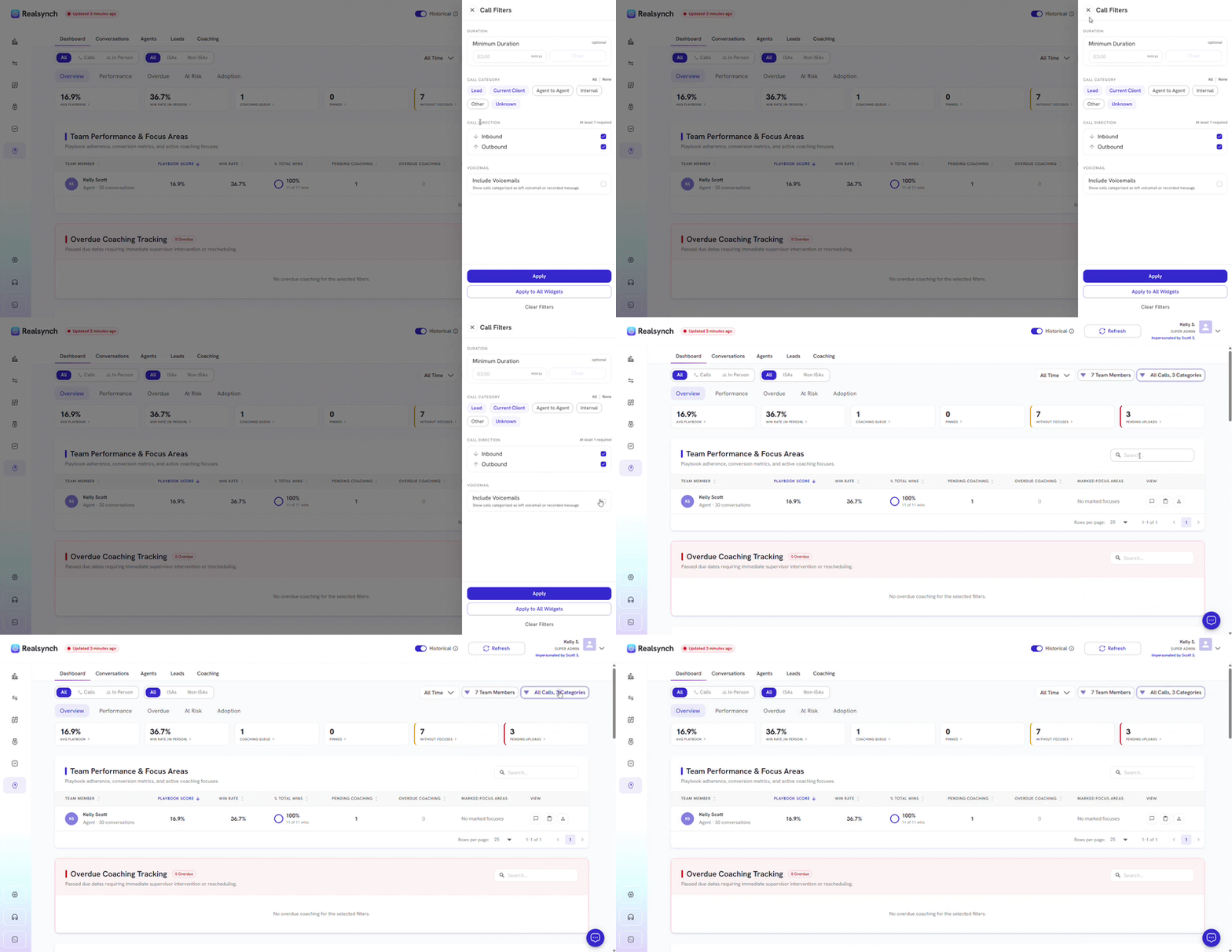
- Filter call duration, categories or include voicemails
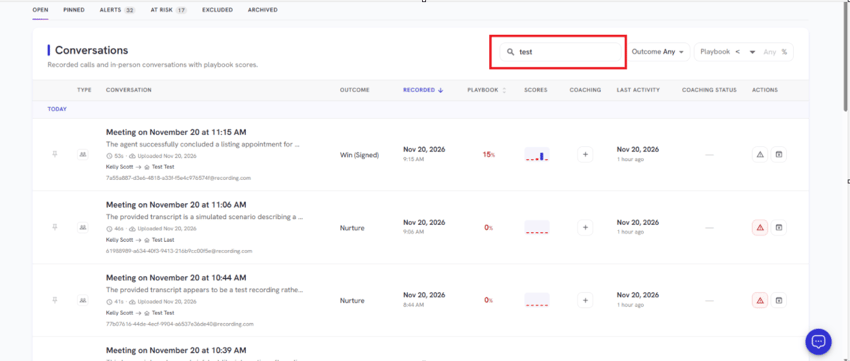
- Use the Search bar to filter Conversations by lead name or phone number:
- Use the Outcome dropdown menu to filter conversations by specific statuses
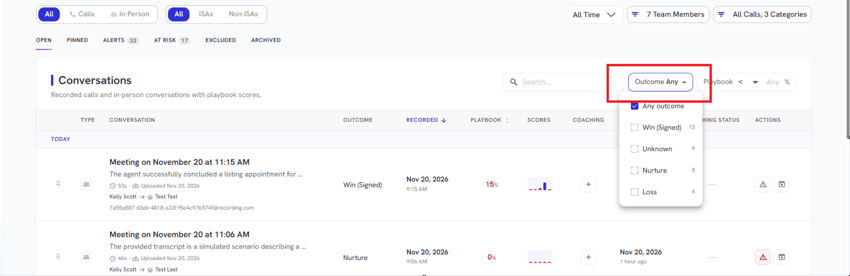
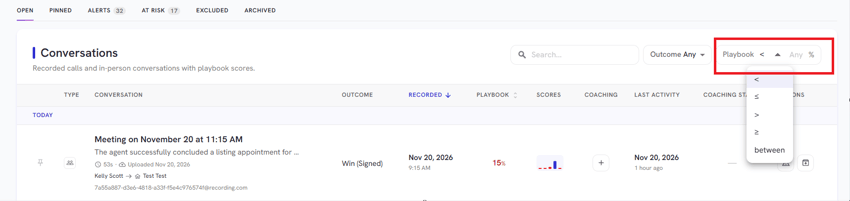
- Filter conversations by playbook score using comparison operators (greater than, less than, or between) to analyze performance threshold
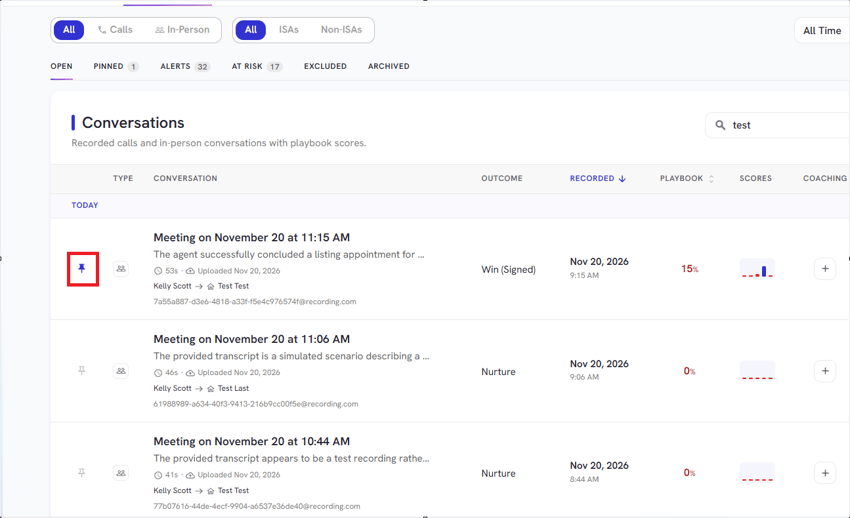
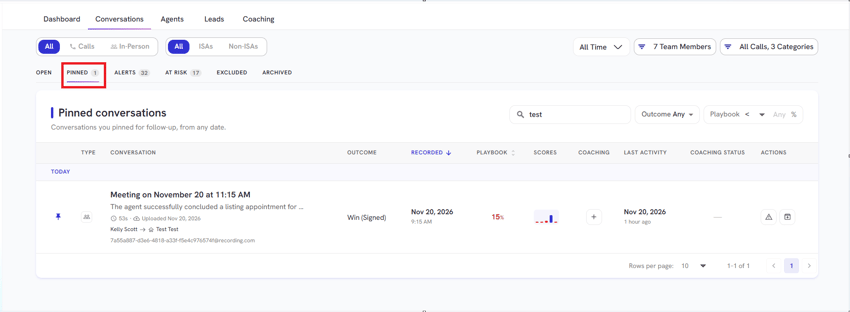
- Click the pin icon next to a conversation to save it for follow-up, and access your saved items anytime under the Pinned tab.
- Click on any conversation row to open and review its full AI-driven insights.
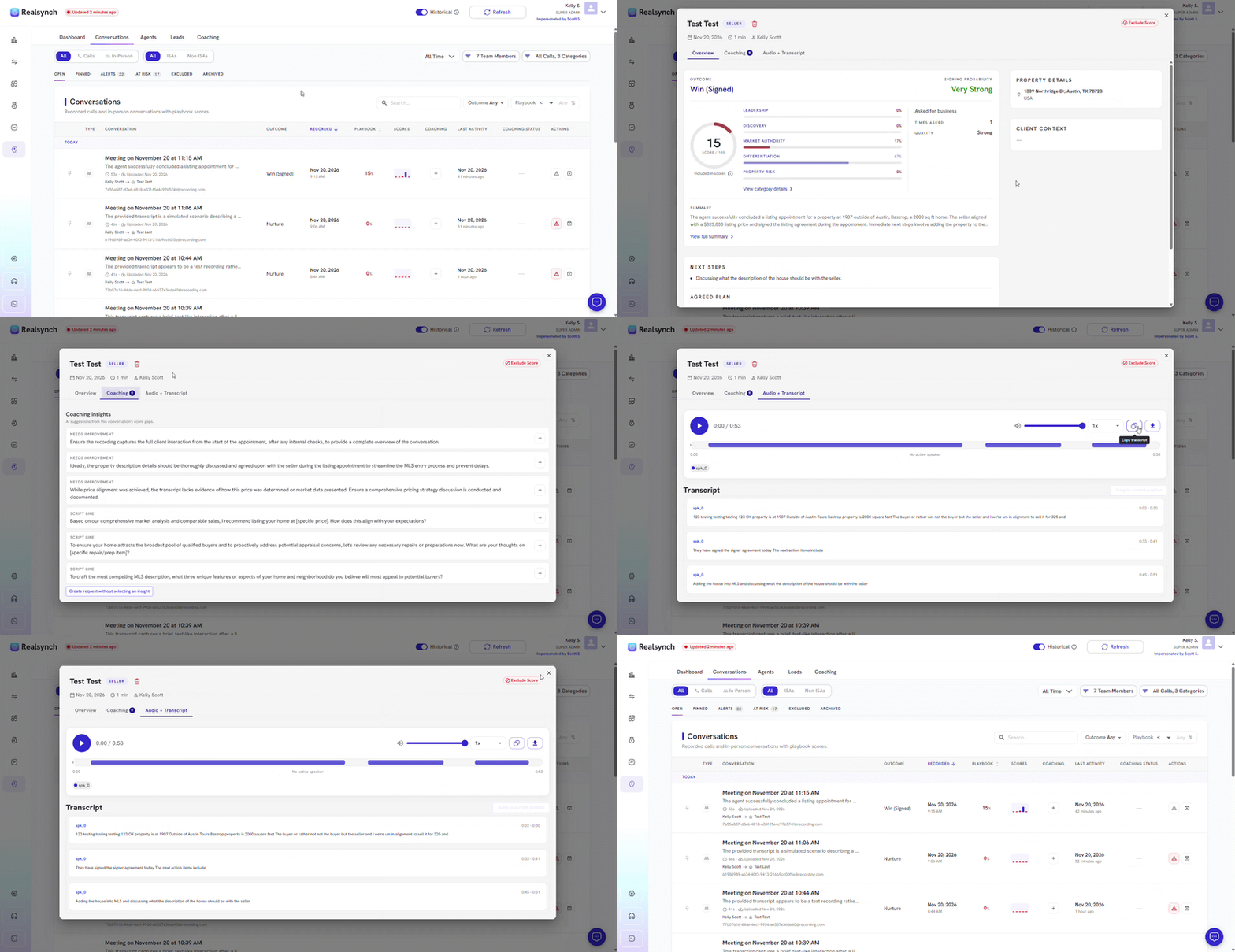
- Exclude an AI insight score when needed and provide a reason
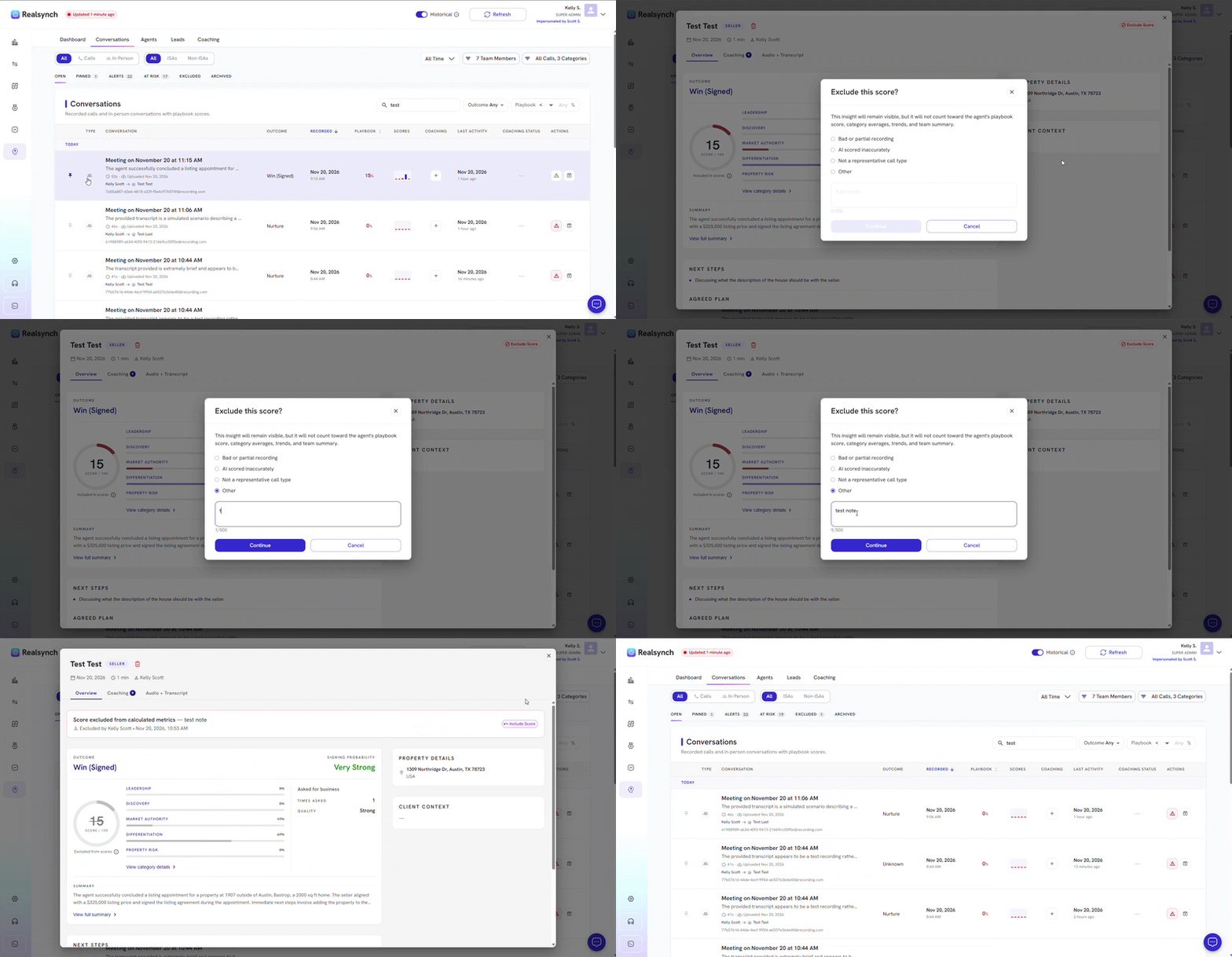
*Excluding an AI Insight score recalculates the specific agent’s metrics in real time.
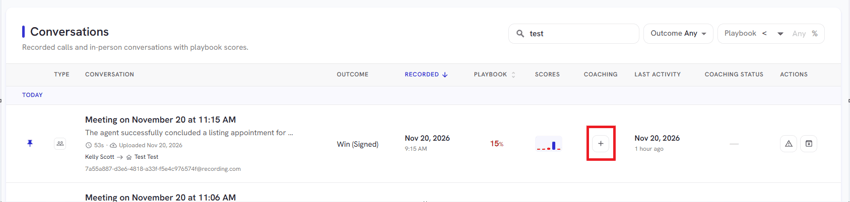
- Click the plus (+) icon to request a coaching form to a specific conversation.
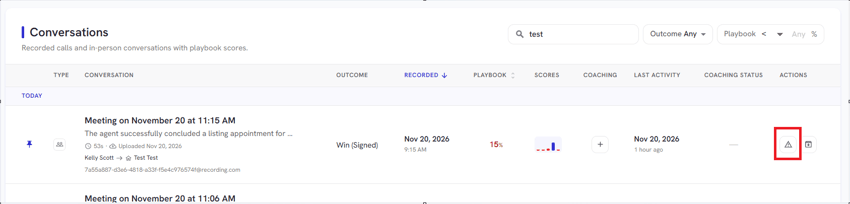
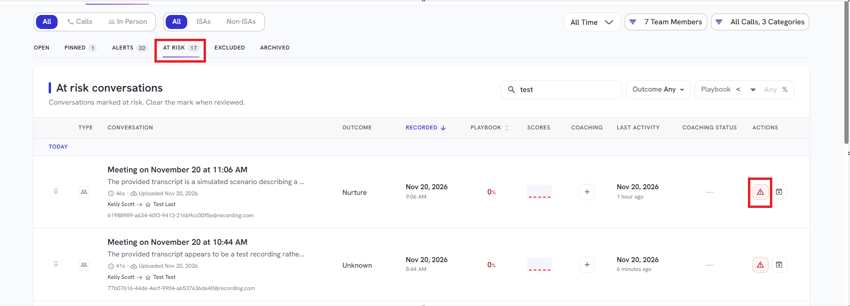
- Flag conversations as "at risk" using the warning icon, and clear the flag once reviewed under the At Risk tab.
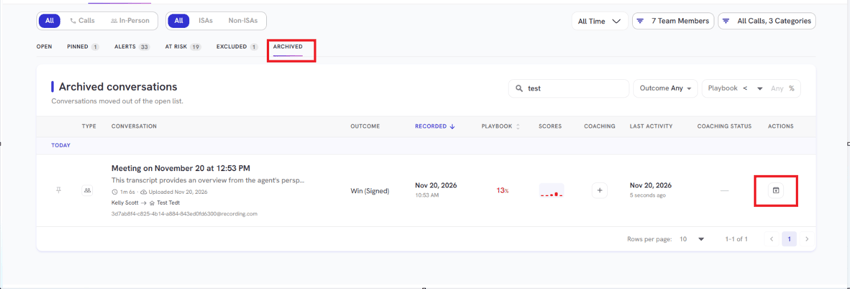
- Archive conversations to remove them from the active list
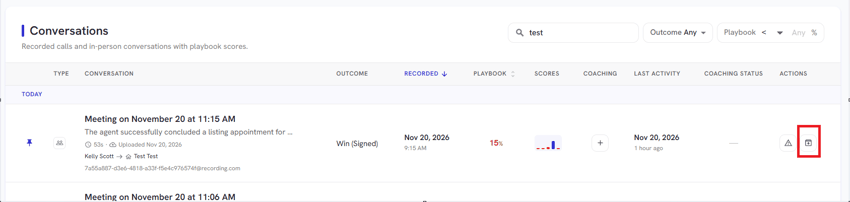
*Archive doesn't get rid of the AI insight at all, it just moves it into a different category where it doesn't show up as at risk anymore.
- Access your saved items anytime under the Pinned tab.
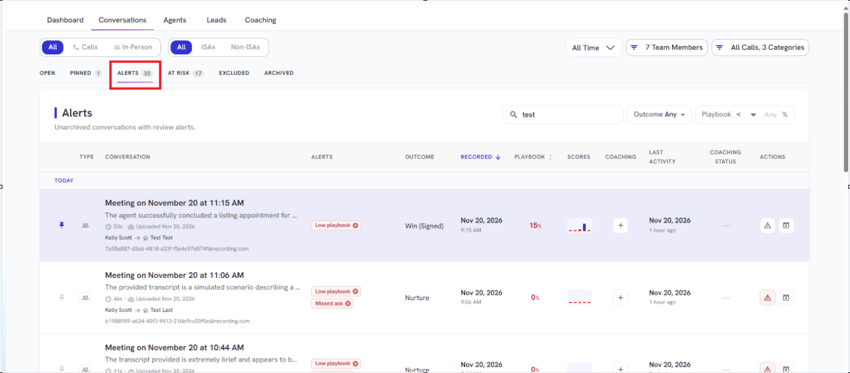
- Check the Alerts tab to review unarchived conversations that have generated review notices.
- View at risk conversations and clear it once reviewed:
- View Excluded conversations
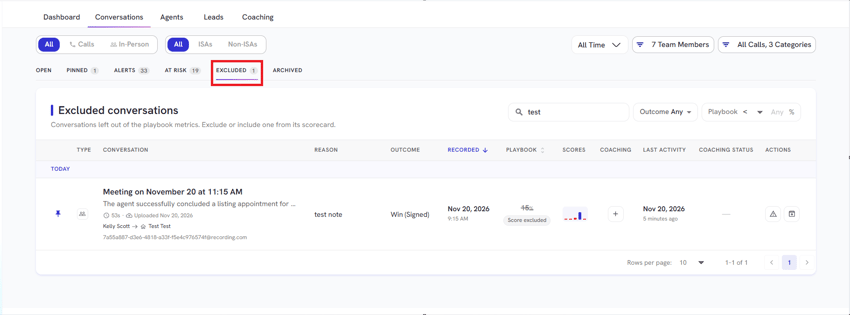
You can exclude an AI Insight score and include it again later. The agent's metrics will recalculate in real time to reflect the current inclusion or exclusion status.
- View Archived Conversations or restore: