
.png?width=45&name=unnamed%20(4).png)

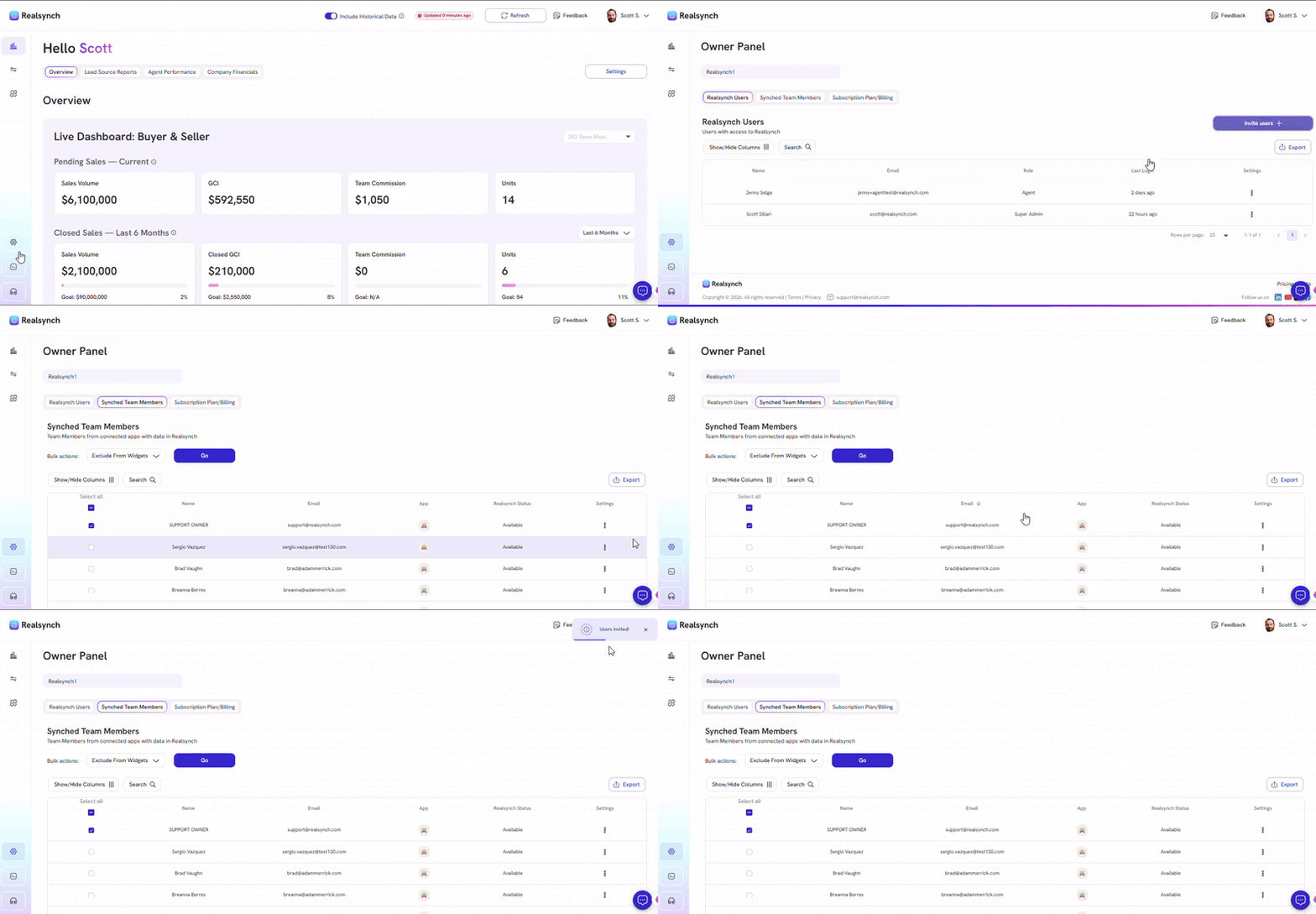
- From your BI Dashboard, go to Owner Panel(gear icon on the left side)

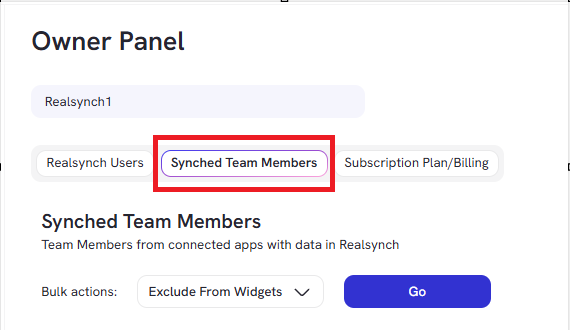
- From the Realsynch Users list screen, click on Invite Users button to be redirected to Synched Team Members screen
-
From the Synched Team Members screen, two ways to send invitations:
-
-
Select Invite User under Settings for an individual team member to send invitation.
-
-
Use checkboxes to select multiple team members and select Send/Resend Invite option and the Go button.
-
Note: Team Members who are already Realsynch members will be excluded from the bulk invitation.
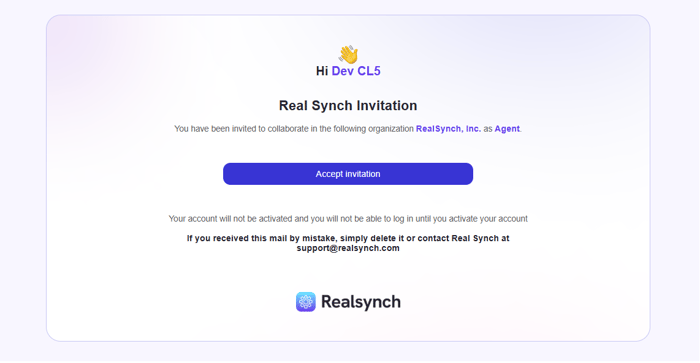
- An email will be send to the team member’s email on file. See screenshot below
- Invitation expires after 14 days.
- Upon acceptation, validate invitation.
- If invalid, team member will be redirected to an error page with message:
- Invitation not found -> “Invitation found”
- Invitation already accepted -> “Invitation already accepted”
- Expired invitation -> “Invitation expired on [Expires At]”
- If valid, team member must initialize Realsynch account via Google, Apple or custom password
- After the agent accepts their invite and finishes the setup process, they will be listed as an active RealSynch user.
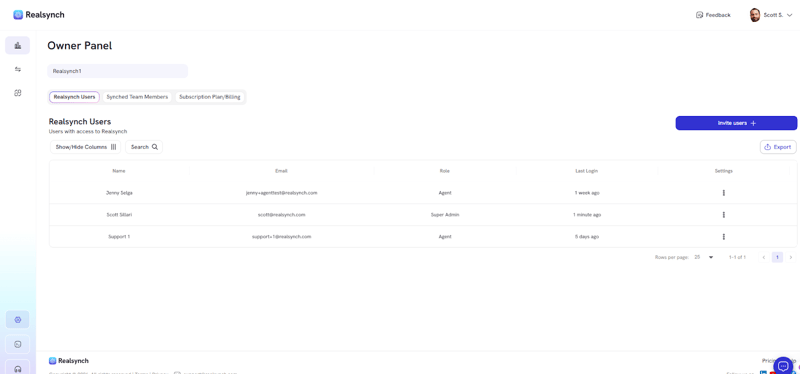
- Upon initialization, team member will be redirected to the dashboard with his/her own data only.
- As an owner, you may revoke Realsynch access from any user on the Realsynch Users screen by selecting Revoke Access on the Settings menu.
